Forward AutoConverse events to GA4
Send the events the Agent emits into Google Analytics 4 using Google Tag Manager.
AutoConverse does not add its own Google Analytics tag. When Enable Google analytics is on for your site in the AutoConverse CMS, the launcher emits custom events into the analytics already present on your page. This guide forwards those events on to Google Analytics 4 from your own GTM container.
How events are routed
The launcher always prefers GTM dataLayer when a GTM container is present, otherwise it falls back to gtag:
- GTM present — the launcher pushes a
dataLayercustom event. Your container forwards it to GA4 (this guide). The launcher does not also call the gtag event, so traffic is not double counted. - No GTM container — the launcher uses the real gtag.js and calls the gtag event directly.
Events AutoConverse sends
Lead events are sent as a single custom event:
autoconverse_lead_sent— sent whenever the assistant captures a lead.
It can carry one optional parameter, autoconverse_lead_type, holding the lead type (the CMS tool name) — for example a test drive booking. When the lead type is empty the parameter is omitted.
Because every AutoConverse event starts with autoconverse_, a single regex trigger catches them all:
\bautoconverse_\w+\bStep 1 — Create the trigger
Inside GTM, create a new trigger named AutoConverseTrigger.
Set the trigger type to Custom Event and enter the event name below exactly as written.
Event name\bautoconverse_\w+\bCheck the box labelled Use regex matching.
Once filled in, the form should look like this, then click Save.
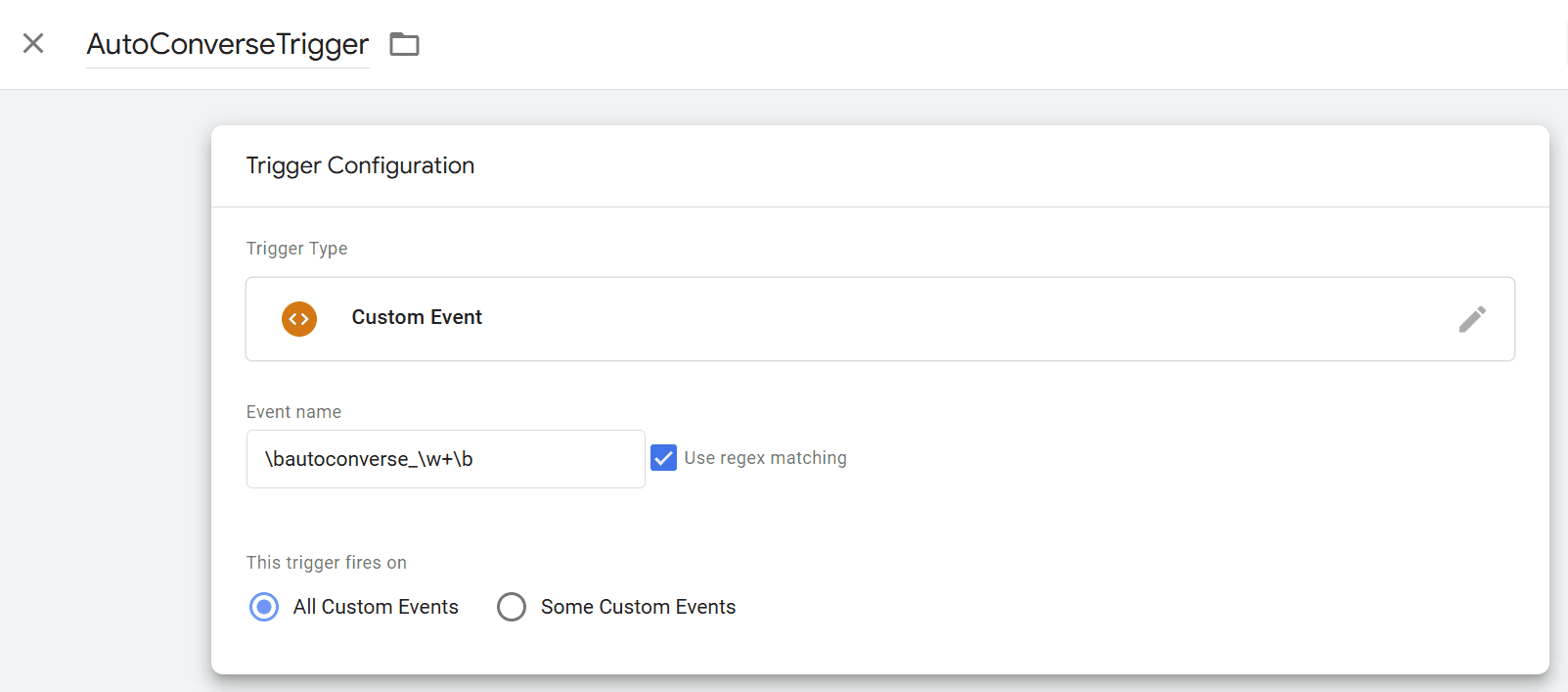
The AutoConverseTrigger configured as a Custom Event with regex matching.
Step 2 — Create the GA4 Event tag
Create a new tag and name it AutoConverseTag.
Under Tag Configuration, choose Google Analytics → Google Analytics: GA4 Event.
Enter your Measurement ID (it looks like
G-XXXXXXXXXX). You can find it in your analytics account for the relevant web stream — it is normally the same ID as the tag called “Google Tag” in your container.In the Event Name field enter
{{Event}}exactly.In the Triggering box, choose AutoConverseTrigger from Step 1.
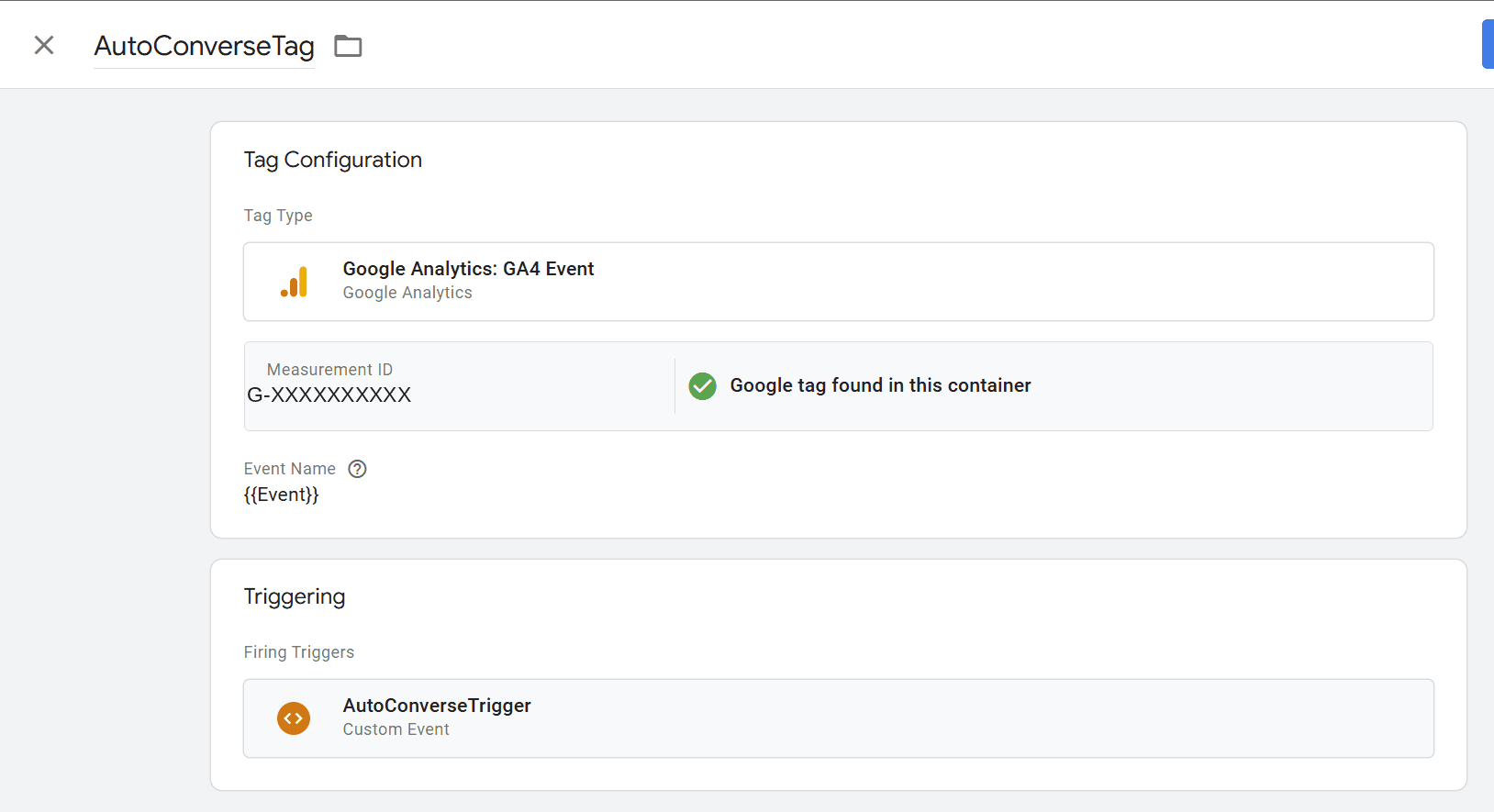
The AutoConverseTag configured as a GA4 Event. Your Measurement ID will differ. Click Save and the tag is created.
Optional — pass the lead type
If you want the lead type to appear in GA4 as an event parameter, create a Data Layer Variable in GTM:
Create a variable of type Data Layer Variable named DL - autoconverse_lead_type.
Set the Data Layer Variable Name to
autoconverse_lead_type.In the AutoConverseTag, add a row under Event Parameters with the parameter name
autoconverse_lead_typeand the value{{DL - autoconverse_lead_type}}.
Publish
Publish your GTM changes so they go live. That’s all that’s needed — all AutoConverse lead events are now forwarded to your Google Analytics accounts for reporting.